Keep an eye out for this symbol 
This installation may take longer than 15 mins. It will depend on how many of the required components are already installed on your server.
Keep an eye out for this symbol
Download the SQL and then proceed with the Install Instructions.
 Download via Support in Synergy Cloud Services
The SQL Express 2005 install files can be downloaded from the Support area located within Synergy Cloud Services.
Click on the link to download this file now: sql express 2005.zip
Unzip this file, save to your server and proceed with the Install Instructions.
Double click the sql express 2005.exe.
Click Next.
Next.
Next.
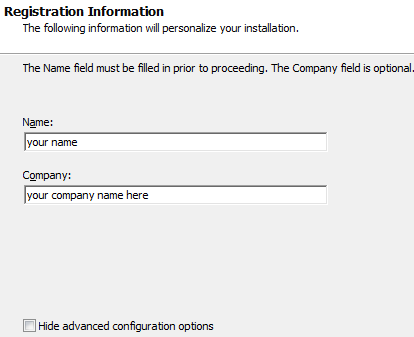
Uncheck Hide Advanced configuration options
It is very important to uncheck this checkbox. SQL Server 2005 Express won’t be configured properly without making this change.
Next.
Selection will default - do not change.
Next.
Selection will default to Synergy -
do not change.
If the Named Instance is changed please make a note of it. This forms the server name as required when you create the database.
The Named instance appear as <Computer_Name>\Synergy eg. ASUS-P5\Synergy.
Next.
Selection will default - do not change.
Next.
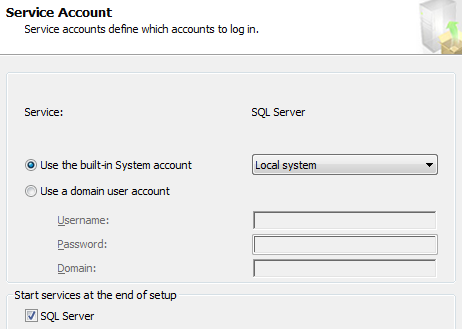
Set the SQL Server drop down to Local system
Please refer to microsoft.com for more information.
Next.
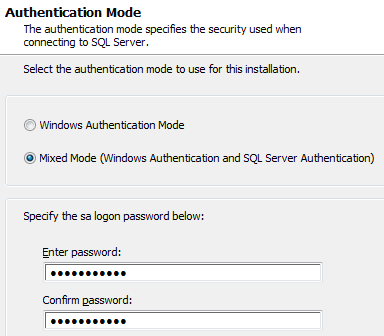
Enter a password
We recommend Synergy2005. Make a note of this password it will be required when you create the database.
Next.
Selection will default - do not change. The option will be Dictionary order, case-insensitive, for use with 1252 Character set.
Next.
Selection will default - do not change.
Next.
Selection will default - do not change.
Next.
Select Install.
This process may take a while.
Next.
Check the results that appear on the final window to ensure SQL has been installed successfully.
Finish.
Please refer to the Remote Connections topic for information.
Please refer to the 2008 Server Firewall topic for information about changing settings.
Looking for more help? Try reviewing the following topics: View Topics
© 2015 Total Synergy Pty Ltd