 to open the expanding toolbar menu, and select 'Maps' to open 'Maps' List.
to open the expanding toolbar menu, and select 'Maps' to open 'Maps' List.
Google Maps is a map service that you view in your web browser. You can view maps and local business information, and driving directions. Click and drag maps to view adjacent sections instantly.
Use Maps List to setup Google Maps to display multiple project site addresses, or other locations on the one map. Keep the map for your personal use, or share it with the entire company.
The following details can be viewed for each saved Map: Maps tab shows a pin for location of each of the location added to your Map, the Info tab shows the summary map details that is displayed in Maps List, and the Locations Tab shows the address and details of any address look-up errors.
Not sure how to get to your client's site? Use Google's 'Get directions' feature to find out how to get there from your office.
 Look up an address in Google Maps

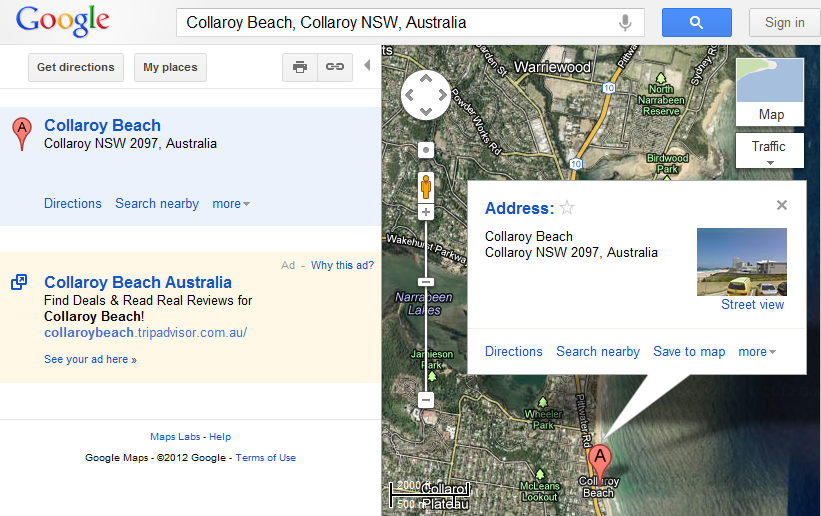
Click on the image above to view an example.
Where can I use the look up an address feature from?
Setup a new map with multiple locations displayed
 to add a new map. to add a new location to your map. to add another new location. Repeat the steps to add extra locations to the map.
Tip: When using the Synergy Desktop application and clicking the 'Show on a Map' button in Project List, a Map with locations is automatically created in your Synergy Cloud Services account. This will be shown in Maps List as Private map for your use again in Synergy Cloud Services.
Share a map with your entire company
 .Make a map inactive
.Edit a map location
.Make a map inactive
.Edit a map location
 , and then select Edit
  ..
..Tip: When using the Synergy Desktop application and clicking the 'Show on a Map' button in Project List, a Map with locations is automatically created in your Synergy Cloud Services account. This will be shown in Maps List as Private map for your use again in Synergy Cloud Services.
Delete a map location
, and then select Delete  .Return to Map List from Map Locations List
Select the Back to list button  in the maps toolbar on the right side, and you will return to Map List.
Edit the Map title and description details from Map Locations List
Click the expanding menu button and then click the Edit button to update the Map Details. This is located on the right side of the row in Locations list.
Reset all location lookups from Maps Locations List
Click the Reset all location lookups button  in the maps toolbar, to remove all the saved maps location and lookup failures. The map will be re-loaded when you return to the Maps tab to view all the locations again.
Looking for more help? Try reviewing the following topics: View Topics
© 2015 Total Synergy Pty Ltd